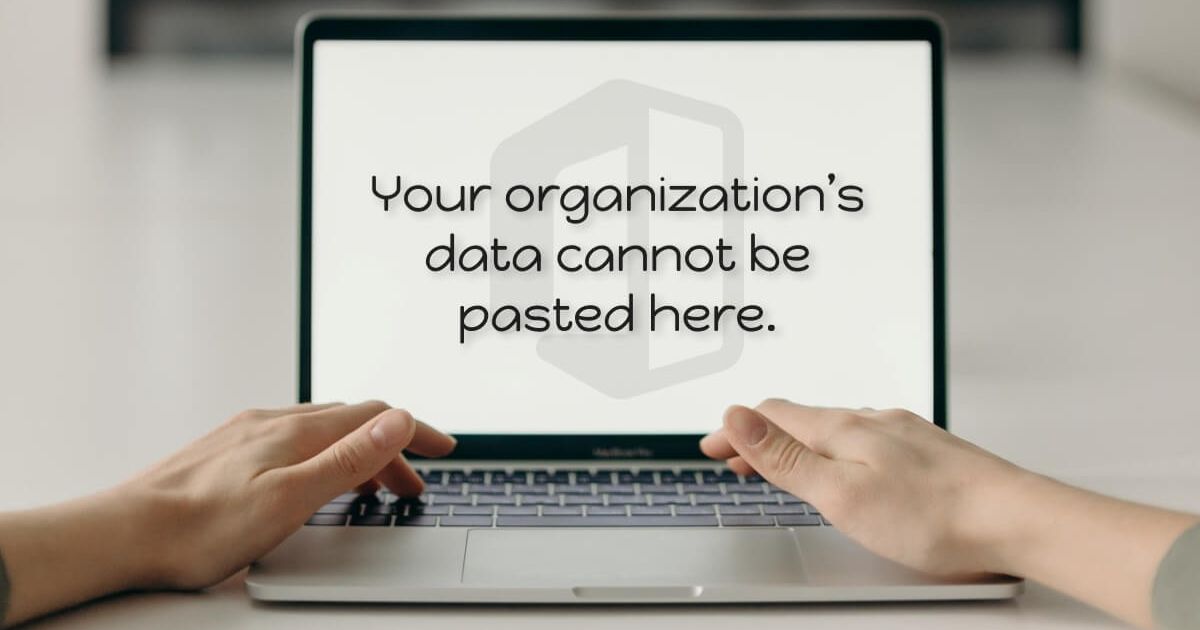
Getting started with modern digital tools is exciting, but you must always remember that your organization’s data cannot be pasted here. Security is the most important part of working with any generative AI system today. When you keep sensitive intellectual property and private internal documents completely offline, you ensure that your confidential business intelligence remains protected, private, and fully secure at all times.
Have you ever wondered how data privacy really works when using smart software? Most people do not realize that every single prompt they type might be used to train models further. That is why being cautious is a vital best practice for every tech-savvy professional who wants to avoid potential security vulnerabilities or the accidental leakage of proprietary company secrets online.
Finally, managing information security requires constant vigilance and robust protocols. By treating every digital platform with healthy suspicion, you build strong defenses around your corporate knowledge. Staying safe means you are always in control of your sensitive assets while using advanced technology everyday.
What Does “Your Organization’s Data Cannot Be Pasted Here” Mean?
The modern security notification means Microsoft Intune is currently stopping you from moving work information. It blocks your system clipboard when you try transferring text from a secure corporate app into an unmanaged personal tool. It is an automated enterprise data protection rule.
This issue commonly happens on Windows 11 systems and mobile devices. When you copy private information from Outlook, the built-in cloud infrastructure prevents data leaks. Your IT department uses these specific access control rules to protect highly sensitive intellectual property.
The restriction strictly enforces your company’s information security management policies. The system instantly detects unauthorized applications to stop corporate data loss online. It ensures that confidential data stays safely within your authorized workspace environment without accidental external sharing.
Understanding the Intune Clipboard Restriction
| Enforced Rule | Action Taken | Operational Impact |
| Block Data Transfer | Stops copying to personal apps | Eliminates external leakage |
| Policy Managed Apps | Allows copying between work apps | Keeps employees productive |
| Character Limits | Restricts large text transfers | Prevents bulk data moving |
Why This Error Appears
This annoying restriction triggers because your company’s system administrator activated strict rules to block corporate data loss on untrusted platforms. When you attempt to copy intellectual property into personal programs, the underlying security architecture instantly blocks your system clipboard. It serves as a vital cybersecurity defense that prevents confidential business intelligence from accidentally leaking into public generative AI models or external storage. Essentially, the automated endpoint security system is just doing its job to enforce information security across the entire network.
Company Security Policies
Modern businesses must follow strict data privacy rules to safeguard their proprietary company secrets daily. When employees use unapproved digital tools, it creates severe security vulnerabilities that hackers can easily exploit.
- Your IT department configures automated compliance management rules to safeguard highly sensitive financial documents and consumer records from external exposure.
- These active corporate guidelines explicitly stop the unauthorized transfer of private text into public web browsers and unmanaged personal applications.
- Implementing these strict safety standards helps organizations successfully pass official information security management audits and avoid massive regulatory fines.
- The system constantly monitors everyday digital workflows to ensure all staff members handle internal records with the highest safety precautions.
Managed Device Restrictions
When you log into a work account, your computer or phone becomes a highly monitored endpoint device. The system instantly applies role-based access control to limit what your personal profile can view.
- Administrators use specialized software to separate personal files from secure workspace environment tools to keep corporate assets completely safe.
- The restriction automatically stops the copy-and-paste function whenever it detects an unmanaged application running in the background of your system.
- These strict device boundaries remain active whether you are working remotely from home or connected directly to the office network.
- Having a fully managed device means your organization can remotely wipe corporate files if the hardware is ever lost or stolen.
See more : EndBugFlow Software – Complete Guide, Features, Installation & Benefits Explained
Microsoft Intune or MDM Tools
Most corporations utilize Microsoft Intune or advanced mobile device management software to oversee their hardware fleet. These cloud-based platforms push real-time updates and safety configurations to every single user.
- The centralized management platform allows IT teams to instantly adjust user privileges and block specific clipboard actions across the globe.
- This advanced cloud infrastructure works quietly in the background without slowing down your computer during your daily business tasks.
- If your device falls out of sync with the main server, it might trigger the error message completely by accident.
- This enterprise software ensures that every employee utilizes the exact same safety configurations to maintain a solid perimeter against threats.
App Protection Policies
The specific mobile application management rules dictate exactly how individual programs interact with each other on your machine. These deep software settings create a secure sandbox for your work life.
- The system easily recognizes authorized applications like Microsoft Outlook and blocks unmanaged programs like basic notepad tools or personal email.
- These smart application rules prevent third-party keyloggers and malicious software from reading the sensitive text stored on your system clipboard.
- You can freely share text between approved enterprise programs because they all exist within the same trusted network boundary.
- Application policies receive frequent updates from the cloud to counter brand-new digital threats and patch potential software bugs immediately.
How to Fix the Issue
Resolving this restriction requires aligning your digital workflow with the organization’s verified endpoint security matrix. When you encounter this block, you cannot bypass the system clipboard restriction using standard workarounds or registry hacks. Instead, you must utilize the designated cloud infrastructure pathways established by your IT department. Following the authorized administrative procedures ensures that your workspace environment remains fully compliant while restoring your ability to safely transfer necessary information between protected enterprise application software modules.
Use Approved Apps Only
The easiest solution is to strictly use software that is fully managed by your company’s mobile application management system. Text transfers seamlessly when both programs share the same data privacy credentials.
- You must open your files inside official enterprise tools like Microsoft Word or Excel to ensure smooth clipboard operations every day.
- Unmanaged applications like public web browsers, personal text editors, and basic notepad tools will always trigger the security block automatically.
- The system allows safe sharing because approved programs utilize the exact same information security management protocols to protect corporate assets.
- Moving your daily tasks entirely into the corporate ecosystem completely eliminates the frustrating restriction without compromising any sensitive internal records.
Check Device Management Settings
Sometimes your operating system loses connection with the central server, causing the automated compliance management rules to malfunction. A manual refresh usually restores proper access.
- Open your system settings and locate the corporate account section to verify that your hardware is actively communicating with the network.
- Clicking the manual sync button forces Microsoft Intune to recheck your current user privileges and apply the latest system updates.
- Outdated operating software can easily misinterpret active access control guidelines, so installing pending system patches can quickly resolve the issue.
- Verifying your device status ensures that the background security certificates are completely accurate and fully recognized by your company’s server.
Contact IT Administrator
If your settings are accurate but the block remains, your specific account might require a manual adjustment inside the mobile device management portal. Your IT team handles these adjustments.
- Reach out to your helpdesk and explain that the automated clipboard policy is currently blocking a legitimate and necessary business workflow.
- A system administrator can easily modify the underlying policy parameters to grant your profile specific exemptions for certain trusted applications.
- Your tech team might need to update the central white-list to include specialized third-party programs required for your specific role.
- Providing the exact error message helps the administrators quickly identify which specific security architecture rule is causing the workflow disruption.
Use Work Profiles Separately
Modern operating systems allow you to completely isolate your personal life from your employment tasks using a dedicated workspace environment. Keeping these spaces divided prevents automated errors.
- Always log into your official corporate profile when executing job tasks to ensure the network recognizes your authorized role-based access control.
- Avoid mixing personal web accounts with enterprise programs on the same browser screen to prevent triggering sudden corporate data loss defenses.
- Utilizing a distinct virtual desktop creates a solid boundary that allows the automated security systems to function without interrupting you.
- This clean separation ensures that your personal files remain completely private while your professional tasks remain fully secure and compliant.
FAQ’s
Q1: Why do I see a security message when copying work files?
The alert appears because your organization’s data cannot be pasted here due to strict IT clipboard protection policies.
Q2: How can I bypass this specific clipboard restriction?
You cannot bypass it, as your organization’s data cannot be pasted here whenever you try using unapproved apps.
Q3: Can I paste text into my personal Notepad tool?
No, because your organization’s data cannot be pasted here if the program lacks official corporate security credentials.
Q4: Will a device reboot fix this paste error?
A reboot won’t change it, since your organization’s data cannot be pasted here while Intune policies remain active.
Q5: Why does this block happen on my phone?
Mobile management systems enforce this rule, meaning your organization’s data cannot be pasted here into personal applications.

James Dean was an American actor and cultural icon of teenage rebellion, best known for Rebel Without a Cause, Giant, and East of Eden.